Text to Video
Create an AI video from a written scene. Describe the subject, action, camera and lighting, then select a model, check credits and download the result.
Start with: A written scene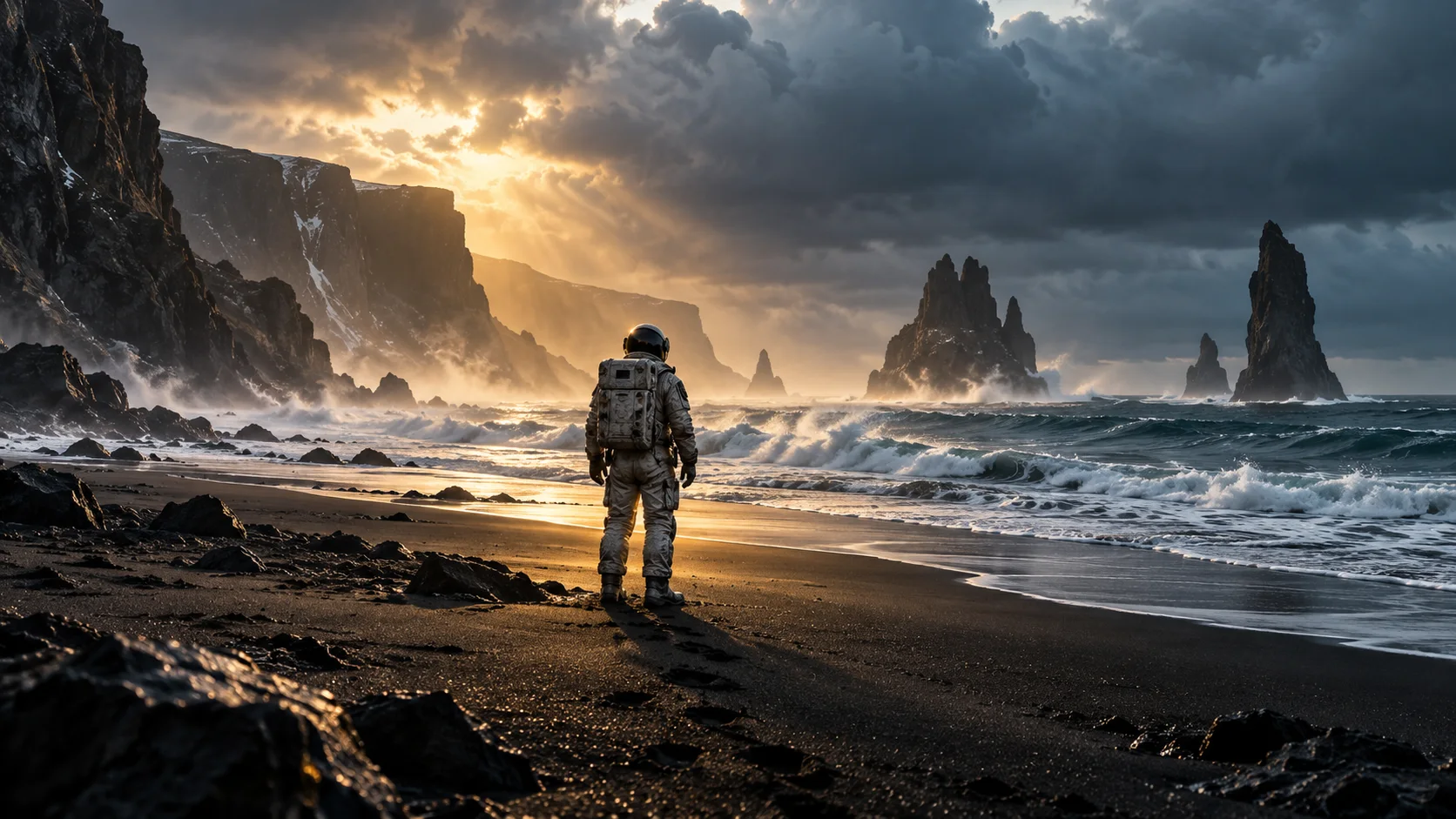
Choose your next creative step
Change the starting material, the subject, or the movement. Here is where each tool helps.
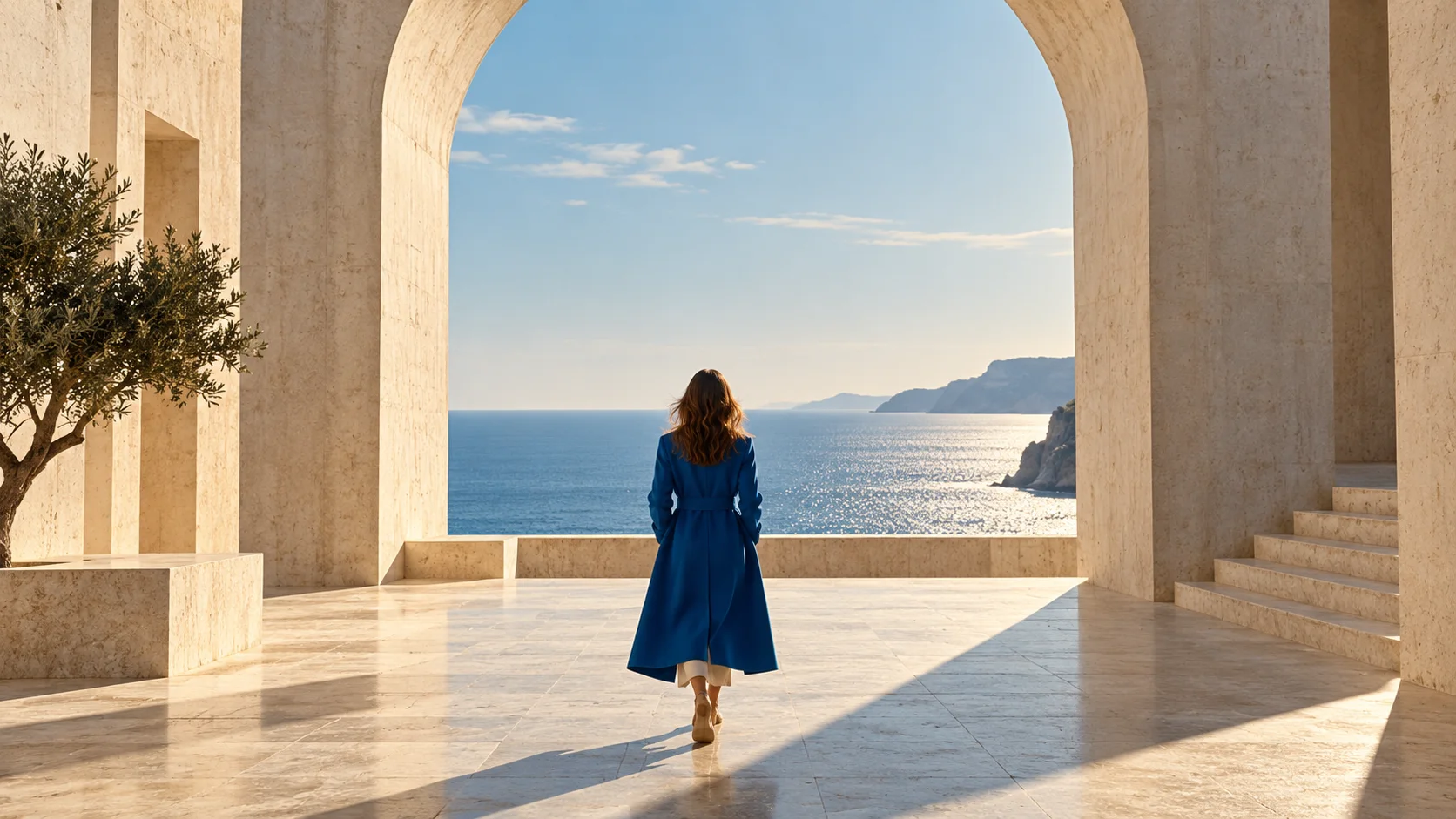 Photo first
Image to Video
Keep an existing image as your visual starting point.
One reference image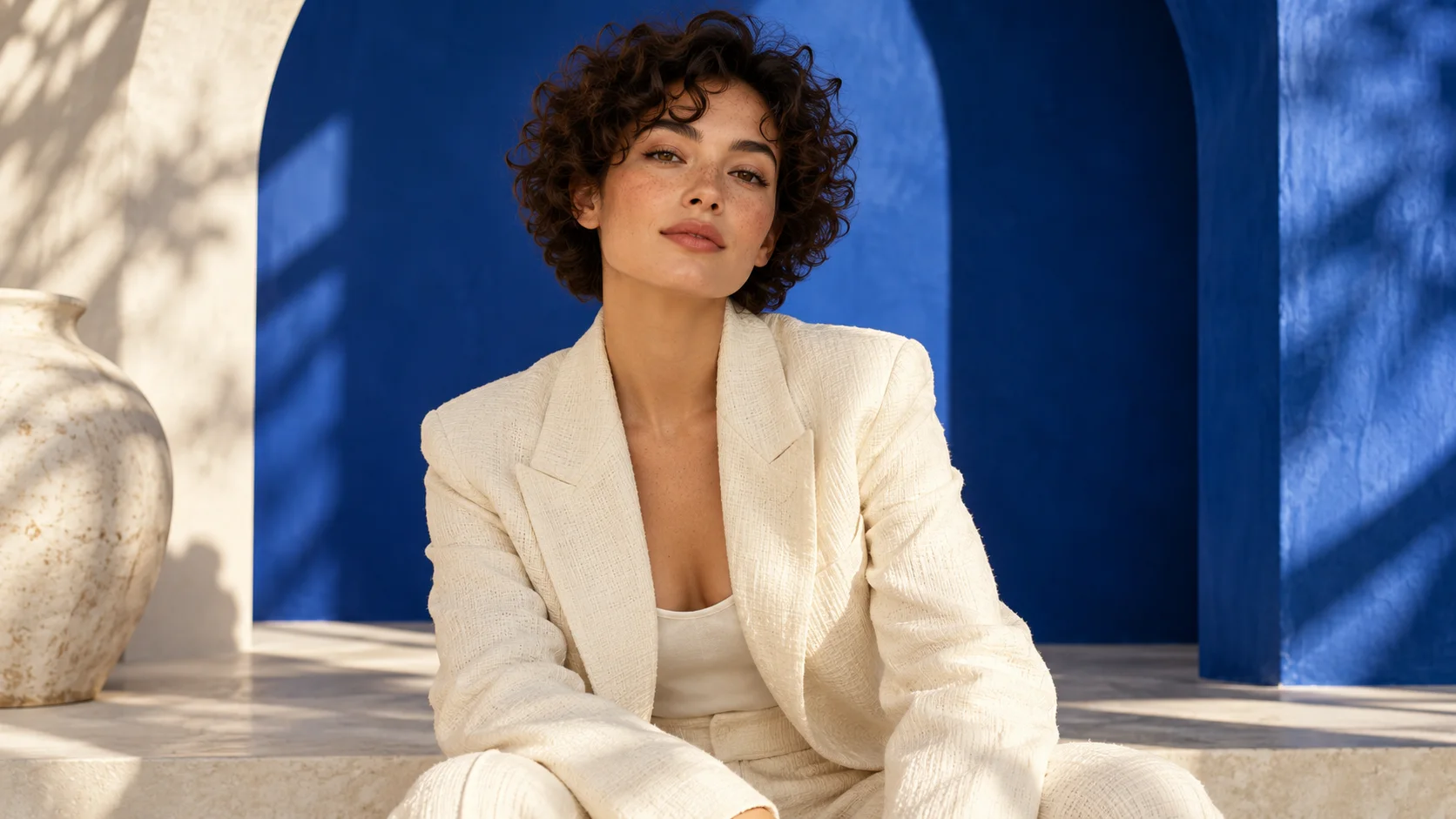
Cinematic Portrait
Preview and preparation guide; dedicated generation is not yet available.
One reference image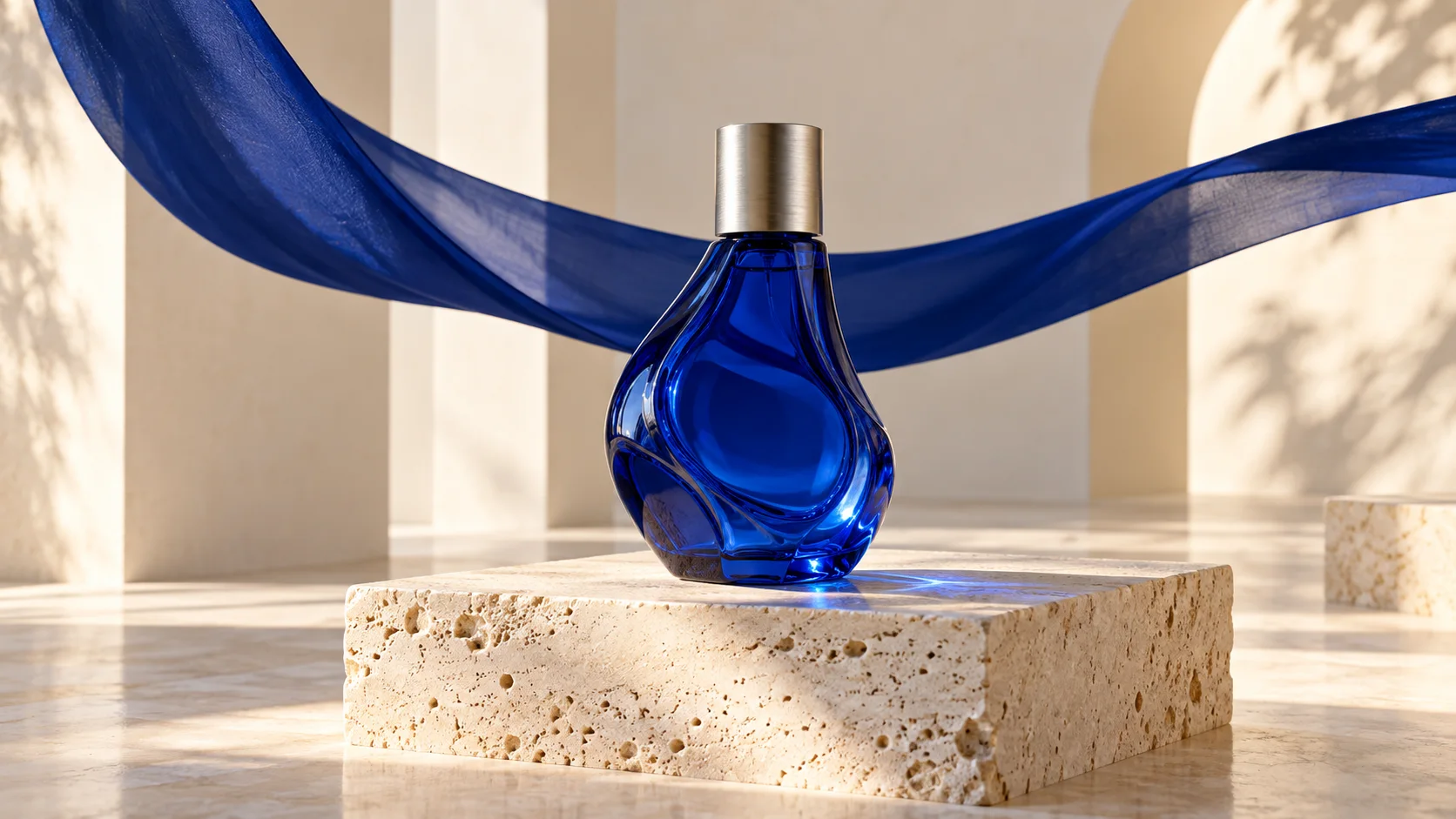
Product Orbit
Preview and preparation guide; dedicated generation is not yet available.
One reference imagePrepare. Direct. Review.
Use these three steps to give your scene a clear direction.
Back to the creator- 01
Set the scene
Name the subject, action, and location in a sentence or two.
- 02
Choose the feeling
Add lighting and a camera direction, then select a frame format.
- 03
Generate your scene
Choose an available model and review the generated scene before downloading.
Give your idea a head start.
- Give each short clip one clear action.
- Use concrete directions such as a slow tracking shot.
- Keep timing and scene changes simple in your first brief.
A few questions, answered.
Get to know text to video before you start.
How do I write a text-to-video prompt?
Describe one subject, one action and a setting, then add camera movement and lighting. For example: A small orange cat sits by a sunlit window, turns its head and blinks. Locked camera, realistic fur, one continuous shot.
Do I need an image to generate a video from text?
No. Text to Video uses your written scene as the input. Choose Image to Video instead when you need a particular photo or composition as the starting frame.
Can I generate dialogue or sound effects?
Choose an audio-enabled model and specify the desired sound in the prompt, including quoted dialogue when relevant. Silent options request no audio track. Voice, timing and exact wording can vary, so listen to the output before using it.
How long can a text-to-video clip be?
Duration depends on the selected model. Creation settings show its supported values; changing models can change the available durations. Use the shortest suitable duration for a first test, then check the updated credit total before submitting.
Which aspect ratio should I choose?
Use 9:16 for a vertical composition, 16:9 for a landscape scene, or 1:1 for square framing when the model supports them. These settings control the frame shape, not the quality or suitability of the content for a particular platform.
How are credits charged and restored?
The selected model, duration, resolution and audio option determine the credit amount shown before submission. A task recorded as failed restores its deducted credits. A successful output is still charged if you do not like the result.
A little guidance for your next creation
Your turn to make it happen.
Start with the example. Then add your own perspective.