Flying Car AI Video Generator
Put your car into a night-stage jump over the parked lineup. Upload one photo, then adjust the visible scene guides.
Start with: One reference imagePhoto-and-reference workflow example. Results vary.
Rebuild the side-view stunt with your own car
The reference is a night-stage vehicle stunt, not a car hovering over traffic. A single moving car rises from the right, crosses a tall white truck and the parked lineup, rotates through an inverted position and lands at the left. The appeal is keeping your car recognizable through that whole action. This creator gives the model separate identity, stage and pose references rather than asking a generic prompt to invent them all.
Photo 1 owns the vehicle identity
Use a sharp whole-car view with the roof, wheels and distinctive paint visible. Avoid another car overlapping it. Photo 1 supplies the identity; its original parking background should not become the video setting. The four pose pictures describe the roll positions. Their example car is a motion guide, while the prompt gives your photo priority for appearance. Inspect the whole roll for color or body-shape changes.
The night stage and the roll are different references
The stage picture supplies the central tall white semi truck, parked cars on both sides, black background and red ground lighting. The four pose pictures specify the roll: upright, roof facing camera, upside down, underside facing camera, then back upright. They are consecutive positions for one car. The eight-second brief follows right entry, lift on downward blue-white jets, the full longitudinal roll over the lineup and a left-side vapor-cloud landing. The nose stays left and the front-to-rear axle stays level; the camera remains low and nearly fixed.
Visible guides you can change without replacing your car
The default starts with an empty Photo 1 and five visible scene/action images. Replace a reference by clicking its picture, remove it with the close button or deselect it. The @Image numbers identify stable slots; moving a picture in the display does not change which role its number names. Deleted references are not silently substituted: update any missing mention in the prompt before generating. The explicit restore control replaces the five guide slots with their defaults and leaves your identity photo and written prompt alone.
Check inversion and touchdown, not just the takeoff
Follow the same main car from right to left. During the roll, its nose should keep pointing left while roof and wheels turn around the front-to-rear axis. A backflip, a flat yaw spin or a camera rotating around an upright car is a different action. Check that the truck and parked cars remain in place, the main car clears them, and the wheels return to the ground beyond the left end. Identity, obstacle geometry and motion can fail even with carefully prepared still references.
A still-guided reconstruction is not locked source motion
These inputs are pictures, not the original video. The model still invents the motion between them, so the example does not guarantee another car will keep its shape, complete the same rotation or land cleanly. The default Mini option is silent; sound and captions can be added after downloading a usable result. Review the whole clip before sharing it or paying for a different version.
Which reference is this page following?
The source site offers separate side, head-on-labelled and ramp versions. This page follows the side-view night-stage obstacle lineup after checking its frame sequence. The source link identifies the intended action; its videos are not results made here, and this page does not establish a real manufacturer demonstration.
Choose your next creative step
Change the starting material, the subject, or the movement. Here is where each tool helps.
 Photo first
Image to Video
Keep an existing image as your visual starting point.
One reference image
Text to Video
Try a different setting without preparing a reference image.
A written scene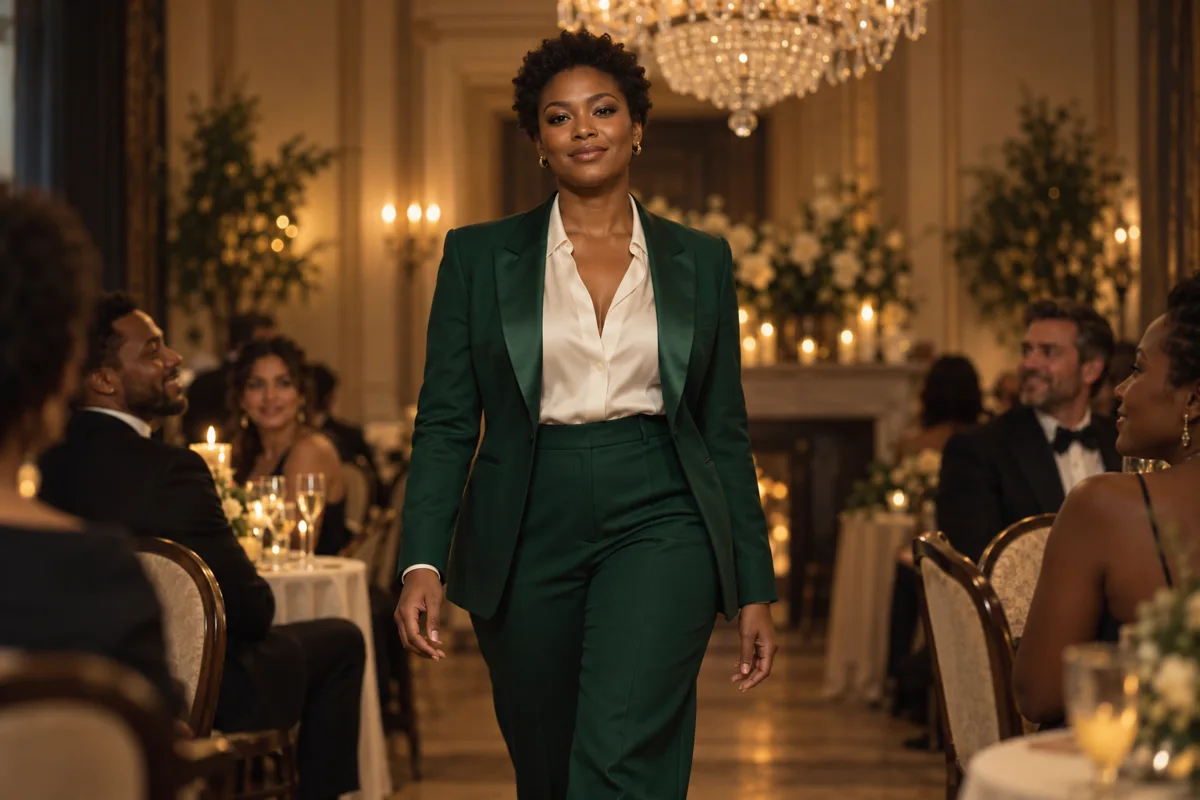 One-photo entrance
Burning Bridges AI Video — Your Own Party Entrance
Make an original Burning Bridges-inspired party entrance from one photo. Direct a short banquet walk, review the silent clip, then add your chosen music.
One reference imagePrepare. Direct. Review.
Use these three steps to give your scene a clear direction.
Back to the creator- 01
Put your car in Photo 1
Upload a sharp side or three-quarter view of the complete car. Photo 1 supplies the vehicle identity, paint and shape. The five visible pictures after it supply the night stage and the four roll positions; their example car is not your vehicle identity.
- 02
Inspect the scene guides and prompt
Keep, replace or remove the stage and four roll-position pictures. The brief follows a right-to-left jump over the white truck, rotating upright, roof towards camera, inverted, underside towards camera and upright again, then landing at left. Update missing prompt references after removing images. Default: Mini 480p, 8 seconds, 16:9, silent; check the live quote.
- 03
Check the roll and landing before export
Follow your car through lift-off, inversion and touchdown. Check its paint and body, four attached wheels, left-facing nose, unchanged parked lineup and visible landing beyond the truck. Download the MP4 and add sound or captions separately.
Give your idea a head start.
- The stage and four roll-position pictures are still references. A separate example video shows one photo-and-reference attempt; it is not a guarantee of your car’s likeness, geometry, timing or landing.
- Use Photo 1 for your own car. The cars visible in the later action guides show position and rotation only; the prompt gives Photo 1 priority for identity. Their color or body shape can still leak into the result, so inspect the whole roll.
- The sideways effect uses a low, nearly fixed camera at a black-night exhibition stage, with a tall central white truck, parked cars and red ground lights. It is different from the ramp and rear-view versions. The preset does not supply a source-video motion input.
- You can remove or replace any guide without changing your car photo. The prompt is never silently rewritten when you remove a picture. Update missing @Image references before generating, and check model capacity if you add more images.
A few questions, answered.
Get to know flying car ai video generator before you start.
What does this flying car AI video generator make?
It attempts the side-view night-stage stunt with your car: rise from the right on downward jets, travel left over a tall white truck and parked cars, roll once around the vehicle’s front-to-rear axis, then land at the left in vapor. This is a multi-image reconstruction, not footage of a real vehicle event or an aircraft-conversion effect.
Which image is my car, and which ones guide the scene?
Photo 1 is the only identity source for your car. Photo 2 shows the stage layout. Photos 3–6 show upright, roof-facing, inverted and underbody-facing positions in that order. The default prompt gives your uploaded car identity priority; the example car in those pictures is only a pose guide. Every input is visible and can be inspected, replaced, deselected or removed.
How do I make a flying car AI video here?
Upload one whole-car photo as Photo 1, inspect the five scene/action guides and read the editable prompt. Start with the selected Mini 480p silent option, 8 seconds and 16:9. Check the current credit quote before submitting. Review the vehicle identity, complete roll and landing before downloading.
Can it exactly match the reference video?
No exact match is guaranteed. This preset sends still images and text, not the original video as a motion reference. The model invents the movement between them, so car identity, rotation, truck clearance and touchdown can differ or fail. A correct reference picture does not establish a correct generated stunt.
Are Roadster AI and car kickflip official vehicle demonstrations?
Those search terms can lead to stylized flying-car and flipping clips. They do not establish a specific manufacturer, launch or real test. This page uses them as discovery aliases for an independent fictional car-stunt workflow. It does not claim endorsement, provide a manufacturer’s footage or verify a real event.
Can I remove the stage or action references?
Yes. Each guide is visible and can be replaced, deselected or removed using the shared composer. Its @Image number remains stable. If the prompt still mentions a removed or deselected image, generation is blocked until you edit that reference or restore a picture. Restoring the default guides is an explicit action and leaves Photo 1 unchanged.
Is flying car AI video generation free?
Reading and editing the brief are free. Generation requires an account and sufficient credits, with the current quote shown before submission. The selected model and settings determine the price. Confirmed failed tasks restore deducted generation credits; a completed output still uses credits when a creative detail or landing is imperfect.
Why did my car change shape or fail to land?
A roll asks the model to preserve identity while inventing hidden bodywork and coordinating jets, obstacles and touchdown. It may copy the example car, change wheels or omit the landing. Use a clear full-car identity photo, keep the reference roles consistent and reduce extra instructions. Check the existing task before paying for another attempt.
A little guidance for your next creation
Your turn to make it happen.
Start with the example. Then add your own perspective.